Using Payment Links, Payment Page, payment extensions, Payouts, POS, or the Reconciliation API? View the classic product documentation
Android Native SDK
Integrate Peach Orchestration SDK into your Android app using Kotlin
Minimum: Android 7.0 (API 24)+
Prerequisites
Before you start integrating, make sure you have an Android development environment, Peach Orchestration credentials, a backend server that can create Payment Intents, and the right Gradle setup.
Development environment
- Android Studio Arctic Fox or later.
- Kotlin 1.6 or later.
- Minimum SDK: API 24 (Android 7.0).
- Target SDK: API 36 or later recommended.
Peach Payments account
Don't have an account yet? Sign up first.
Already have an account? Collect your credentials from the Dashboard:
Log in to the Dashboard
You can log in to the Dashboard using one of the following methods:
- Using a magic link; this is the default login method. After entering your email address, Dashboard sends you a magic link that you click to log in.
- Using a password.
Info
Log in using a magic link
To access the Dashboard:
- Visit https://dashboard.peachpayments.com.
- Enter your company email address and click Submit.
- In your email inbox, click the Login to Dashboard link that you received from Peach Payments (if you've got multiple login emails, click the latest link). If the email isn't in your inbox, check your spam folder. The magic link expires after five minutes, but you can redo this procedure to receive a new link.
- When the Dashboard prompts you for two-factor authentication:
- On your phone, open your authenticator app and note the 6-digit authentication code for Peach Payments.
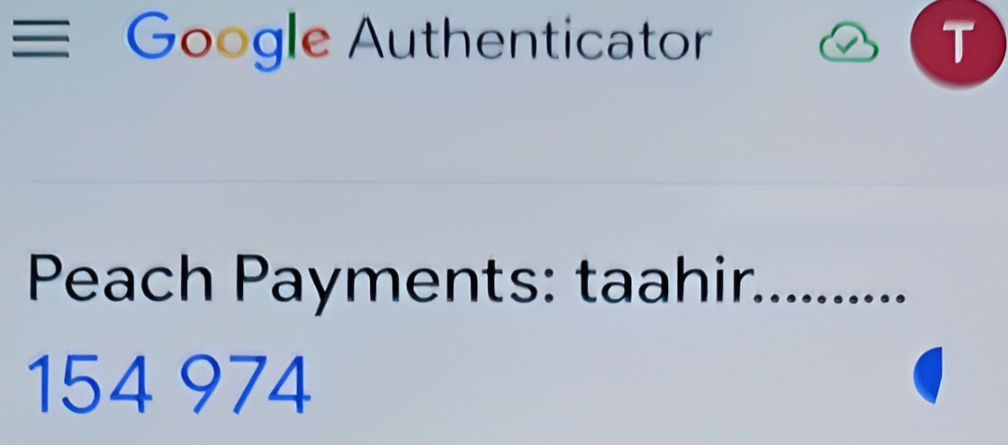
Example Google Authenticator authentication code. - In your browser, in the Verify Your Identity window, enter the authentication code.
- Select Remember this device for 30 days if you don't want the Dashboard to ask for an authentication code for the next 30 days.
- Click Continue.
- On your phone, open your authenticator app and note the 6-digit authentication code for Peach Payments.
Warning
Log in using a password
When you first gain access to the Dashboard, the email contains a link to either log in using a magic link, or to complete your account by setting a password. Use the password that you set there for all future logins, unless you reset it. If you can't find the initial email, you can set your first password using the reset your password functionality.
To access the Dashboard:
- Visit https://dashboard.peachpayments.com.
- Click Username & Password beneath the Submit button.
- Enter your company email address and password, and click Log in.
- When the Dashboard prompts you for two-factor authentication:
- On your phone, open your authenticator app and note the 6-digit authentication code for Peach Payments.
- In your browser, in the Verify Your Identity window, enter the authentication code.
- Select Remember this device for 30 days if you don't want the Dashboard to ask for an authentication code for the next 30 days.
- Click Continue.
- In the left sidebar, click Peach Orchestration.
- Under Peach Orchestration credentials, copy your profile ID (
pro_xxx) and publishable key (pk_snd_xxxfor sandbox,pk_prd_xxxfor live). The publishable key is safe to use in client-side code. - Under API keys, click New API key + to create a merchant API key (
snd_xxxfor sandbox,prd_xxxfor live).
Never ship your merchant API key
The merchant API key belongs on your server only. Never expose it in client-side code — a web page, a mobile app bundle, or anything else a shopper can read.
Can't find these credentials, or don't see the Peach Orchestration section? Contact support to request access.
Backend server
You need a server to create Payment Intents.
Keep your secret key off the device
Never expose your secret key in the Android app.
Gradle configuration
- The Peach Maven registry, which allows anonymous reads and needs no token.
- The Juspay and JitPack Maven repositories for transitive dependencies.
- Java 8 or later compatibility is required.
Wallet prerequisites
Google Pay
For app integrations you provide your own Google Pay ID for app review. The API merchantId is only enforced in production.
- Register in the Google Pay & Wallet Console and send Peach Payments the merchant ID Google issues.
- Complete the business profile — name, logo, and website — that is shown on the payment sheet.
- Submit for production access before going live. The test environment works without approval.
Google's own references: Web integration and Android integration.
Samsung Pay
For app integrations you provide your own Samsung Pay certificates for your app review process.
- Register at Samsung Pay Developers and create a service in the Samsung Pay portal.
- Choose the Online / In-App service type, which generates a service ID.
- Peach Payments provides a CSR so you can obtain the service certificate and register your callback and domain details — contact support to request it.
Samsung's own references: the Samsung Pay console and Getting started.
The SDK is published to the Peach GitLab Maven registry. Add the registry to your repositories, declare a single dependency, and sync.
Current versions
| Component | Version |
|---|---|
| Android SDK | 1.5.5 |
| Peach Gradle plugin | 0.2.14 |
The Gradle plugin bump is required
Bumping the Gradle plugin is required, not optional. It carries the SDK version pin inside its own artifact, so an older plugin keeps resolving an older SDK no matter what else you change.
Project-level build.gradle (or settings.gradle.kts)
The SDK and the Gradle plugin come from the Peach GitLab Maven registry, not Maven Central. Reads are anonymous — no credentials or deploy token needed. The Juspay and JitPack repositories are still needed for transitive dependencies (scan-card).
In settings.gradle.kts:
dependencyResolutionManagement {
    repositories {
        google()
        mavenCentral()
        // Peach SDK + Gradle plugin
        maven { url = uri("https://gitlab.com/api/v4/projects/81506485/packages/maven") }
        maven { url = uri("https://maven.juspay.in/hyper-sdk/") }  // transitive scan-card deps
        maven { url = uri("https://jitpack.io") }
    }
}
The Groovy equivalent of the Peach registry line:
maven { url "https://gitlab.com/api/v4/projects/81506485/packages/maven" }App-level build.gradle.kts
plugins {
    id("com.android.application")
    id("org.jetbrains.kotlin.android")
}

android {
    compileSdk = 36

    defaultConfig {
        minSdk = 24
        targetSdk = 36
    }

    // Enable Java 8 features
    compileOptions {
        sourceCompatibility = JavaVersion.VERSION_1_8
        targetCompatibility = JavaVersion.VERSION_1_8
    }

    kotlinOptions {
        jvmTarget = "1.8"
    }
}

dependencies {
    // Peach Orchestration SDK - note the io.peachpayments group.
    // The artifact name is unchanged; only the group moved.
    //
    // This is the ONLY Peach artifact you declare. It pulls in
    // io.peachpayments:hyperswitch-sdk-android-api (1.1.2),
    // -logger (1.0.4), and the sentry_react-native,
    // react-native-inappbrowser-reborn and react-native-svg
    // artifacts (1.0.1) transitively - don't list those yourself.
    implementation("io.peachpayments:hyperswitch-sdk-android:1.5.5")
}
Sync and build
- Click Sync Now in Android Studio.
- Build the project to verify that dependencies resolve.
Group and namespace
The Maven group and the Android namespace are both io.peachpayments. Import classes as io.peachpayments.PaymentSession, and so on.
ProGuard rules
If you use R8 or ProGuard, add the following to proguard-rules.pro:
-keep class io.peachpayments.** { *; }-dontwarn io.peachpayments.**Configure the SDK in your checkout Activity with your publishable key and the API host it should talk to.
Activity setup
import io.peachpayments.PaymentSession
import io.peachpayments.paymentsheet.PaymentSheet
import io.peachpayments.paymentsheet.PaymentSheetResult

class CheckoutActivity : AppCompatActivity() {

    private lateinit var paymentSession: PaymentSession

    override fun onCreate(savedInstanceState: Bundle?) {
        super.onCreate(savedInstanceState)

        // Create a PaymentSession with your publishable key
        paymentSession = PaymentSession.Builder(this, "pk_test_your_publishable_key")
            .customBackendUrl("https://app.sandbox-next.peachpayments.com/api")
            .build()
    }
}
Register your Application in AndroidManifest.xml:
<application android:name=".MyApplication" ...>PaymentConfiguration, required for wallet buttons
PaymentSession is enough for the payment sheet. The direct wallet buttons (BasePaymentWidget plus UnifiedPaymentLauncher) read the publishable key from PaymentConfiguration instead, so initialise it too — otherwise getInstance() throws.
PaymentConfiguration.init(applicationContext, "pk_test_your_publishable_key")Environment-based configuration
Use BuildConfig for environment switching.
In build.gradle.kts:
android {
    buildTypes {
        debug {
            buildConfigField("String", "HYPERSWITCH_KEY", "\"pk_test_xxx\"")
            buildConfigField("String", "HYPERSWITCH_API_URL", "\"https://app.sandbox-next.peachpayments.com/api\"")
        }
        release {
            buildConfigField("String", "HYPERSWITCH_KEY", "\"pk_live_xxx\"")
            buildConfigField("String", "HYPERSWITCH_API_URL", "\"https://app.next.peachpayments.com/api\"")
        }
    }
}
In your Activity:
paymentSession = PaymentSession.Builder(this, BuildConfig.HYPERSWITCH_KEY)
    .customBackendUrl(BuildConfig.HYPERSWITCH_API_URL)
    .build()
A full checkout flow: create the PaymentSession in onCreate(), fetch a client secret from your server, present the payment sheet, and handle the result.
Complete checkout Activity
import android.os.Bundle
import androidx.appcompat.app.AppCompatActivity
import androidx.lifecycle.lifecycleScope
import io.peachpayments.PaymentSession
import io.peachpayments.paymentsheet.PaymentSheet
import io.peachpayments.paymentsheet.PaymentSheetResult
import kotlinx.coroutines.launch

class CheckoutActivity : AppCompatActivity() {

    private lateinit var paymentSession: PaymentSession

    override fun onCreate(savedInstanceState: Bundle?) {
        super.onCreate(savedInstanceState)
        setContentView(R.layout.activity_checkout)

        // Step 1: Create PaymentSession with publishable key
        paymentSession = PaymentSession.Builder(this, "pk_test_your_publishable_key")
            .customBackendUrl("https://app.sandbox-next.peachpayments.com/api")
            .build()

        // Step 2: Set up pay button
        findViewById<Button>(R.id.payButton).setOnClickListener {
            startCheckout()
        }
    }

    // Step 3: Start checkout flow
    private fun startCheckout() {
        lifecycleScope.launch {
            try {
                showLoading(true)

                // Create payment intent on your server
                val checkoutData = createPaymentIntent()

                // Initialise and present payment sheet
                presentPaymentSheet(checkoutData)

            } catch (e: Exception) {
                showLoading(false)
                showError(e.message ?: "Unknown error")
            }
        }
    }

    // Step 4: Create Payment Intent (call your server)
    private suspend fun createPaymentIntent(): CheckoutData {
        val response = RetrofitClient.api.createPaymentIntent(
            CreatePaymentRequest(
                amount = 6500,
                currency = "zar"
            )
        )
        return CheckoutData(
            clientSecret = response.clientSecret,
            customerId = response.customerId,
            ephemeralKey = response.ephemeralKey
        )
    }

    // Step 5: Initialise and Present Payment Sheet
    private fun presentPaymentSheet(data: CheckoutData) {
        // Initialise the payment session with client secret
        paymentSession.initPaymentSession(data.clientSecret)

        showLoading(false)

        // Present the payment sheet
        paymentSession.presentPaymentSheet { result ->
            handlePaymentResult(result)
        }
    }

    // Step 6: Handle payment result
    private fun handlePaymentResult(result: PaymentSheetResult) {
        when (result) {
            is PaymentSheetResult.Completed -> {
                // Payment succeeded
                showSuccess("Payment successful!")
                finish()
            }
            is PaymentSheetResult.Canceled -> {
                // User canceled - do nothing
                Log.d("Checkout", "Payment canceled")
            }
            is PaymentSheetResult.Failed -> {
                // Payment failed
                showError(result.error.localizedMessage ?: "Payment failed")
            }
        }
    }

    // Helper methods
    private fun showLoading(show: Boolean) {
        findViewById<ProgressBar>(R.id.progressBar).visibility =
            if (show) View.VISIBLE else View.GONE
        findViewById<Button>(R.id.payButton).isEnabled = !show
    }

    private fun showSuccess(message: String) {
        Toast.makeText(this, message, Toast.LENGTH_LONG).show()
    }

    private fun showError(message: String) {
        AlertDialog.Builder(this)
            .setTitle("Error")
            .setMessage(message)
            .setPositiveButton("OK", null)
            .show()
    }
}
Data classes
data class CheckoutData(
    val clientSecret: String,
    val customerId: String? = null,
    val ephemeralKey: String? = null
)

data class CreatePaymentRequest(
    val amount: Int,
    val currency: String
)
The SDK automatically shows the payment methods that are available, based on your Peach Payments Dashboard configuration, the customer's location, and the payment amount and currency.
Cards
Cards are enabled by default. The SDK handles:
- Card number validation (Luhn check).
- Expiry date validation.
- CVV/CVC validation.
- 3-D Secure authentication, automatically.
Supported card networks are Visa, Mastercard, American Express, and Diners Club.
Google Pay
val configuration = PaymentSheet.Configuration(
    merchantDisplayName = "Your Store",
    googlePay = PaymentSheet.GooglePayConfiguration(
        environment = PaymentSheet.GooglePayConfiguration.Environment.Test,
        // Use .Production for live
        countryCode = "ZA",
        currencyCode = "ZAR",
        merchantName = "Your Store"  // Shown in Google Pay sheet
    )
)
Google Pay requirements:
- The device has the Google Pay app.
- The user has cards added to Google Pay.
- Mobile SDK V2: register your own Google Pay merchant ID in the Google Pay & Wallet Console, complete the business profile, send the ID to Peach Payments, and submit for production access before going live.
Direct wallet buttons (BasePaymentWidget)
Embed a real branded Google Pay button in your own checkout, with no payment sheet in between. The customer taps it and completes the payment in the wallet's own sheet. There is no new API — it is a view plus a launcher.
1. Add the widget to your layout
<io.peachpayments.view.BasePaymentWidget
    android:id="@+id/googlePayButton"
    android:layout_width="match_parent"
    android:layout_height="wrap_content"
    app:paymentMethod="google_pay" />
app:paymentMethod accepts google_pay, paypal, expressCheckout, and card. Setting it to expressCheckout renders a row of every wallet you have enabled.
Use wrap_content. Do not pin a height — the SDK reports what it needs.
2. Initialise PaymentConfiguration
PaymentConfiguration.init(...) is required. UnifiedPaymentLauncher reads the publishable key from PaymentConfiguration, not from PaymentSession. If you only ever called PaymentSession(...), getInstance() will throw.
PaymentConfiguration.init(applicationContext, "pk_test_your_publishable_key")3. Create the launcher
val launcher = UnifiedPaymentLauncher.createGooglePayLauncher(
    activity = this,
    readyCallback = { isReady ->
        // Treat this as the signal that the button is usable
        googlePayButton.isVisible = isReady
    },
    resultCallback = { result ->
        // Handle completed / canceled / failed
    }
)
The express row equivalent is UnifiedPaymentLauncher.createExpressCheckoutLauncher(...).
The button may render nothing
The SDK decides availability: the wallet must be enabled for your merchant, the connector must return a session token, and the wallet must be usable on the device. When any of those fail the widget collapses to zero height. That is a normal empty state, not an error — never gate checkout on the wallet appearing, and always keep a card fallback.
Programmatic start
presentForPayment(clientSecret) starts the flow from your own button instead of the branded one.
Bank redirects
For payment methods that redirect, configure deep link handling.
In AndroidManifest.xml:
<activity android:name=".CheckoutActivity">
    <intent-filter>
        <action android:name="android.intent.action.VIEW" />
        <category android:name="android.intent.category.DEFAULT" />
        <category android:name="android.intent.category.BROWSABLE" />
        <data android:scheme="yourapp" android:host="payment-return" />
    </intent-filter>
</activity>
Handle the return:
override fun onNewIntent(intent: Intent?) {
    super.onNewIntent(intent)
    intent?.data?.let { uri ->
        if (uri.scheme == "yourapp" && uri.host == "payment-return") {
            // Payment flow completed, check status
            checkPaymentStatus()
        }
    }
}
Buy now, pay later
Enable the BNPL methods you offer in the Peach Payments Dashboard. Each one shows automatically when it is available for the amount and currency. Completing a BNPL payment typically redirects to the provider's app or website.
Payment method ordering
val configuration = PaymentSheet.Configuration(
    merchantDisplayName = "Your Store",
    paymentMethodOrder = listOf(
        "card",
        "google_pay",
        "payjustnow",  // any enabled BNPL; also payflex, float, mobicred, …
    )
)
Disabling specific payment methods
Control this on your server when creating the Payment Intent:
{
  "payment_method_types": ["card", "google_pay"]
}
Only the listed methods are offered.
To show saved cards to returning customers, create a customer and an ephemeral key on your server, then pass both to the payment sheet.
Setup: create a customer on your server
POST /customers{
"email": "customer@example.com",
"name": "John Doe"
}The response returns the customer ID:
{ "customer_id": "cus_xxx" }Setup: create an ephemeral key on your server
POST /ephemeral_keys{ "customer_id": "cus_xxx" }The response returns the secret:
{ "secret": "ek_xxx" }Configure PaymentSheet with a customer
data class CheckoutResponse(
    @SerializedName("client_secret") val clientSecret: String,
    @SerializedName("customer_id") val customerId: String,
    @SerializedName("ephemeral_key") val ephemeralKey: String
)

fun presentPaymentSheet(response: CheckoutResponse) {
    val customerConfig = PaymentSheet.CustomerConfiguration(
        id = response.customerId,
        ephemeralKeySecret = response.ephemeralKey
    )

    val configuration = PaymentSheet.Configuration(
        merchantDisplayName = "Your Store",
        customer = customerConfig,
        // Control save card behaviour
        allowsDelayedPaymentMethods = true
    )

    paymentSheet.presentWithPaymentIntent(
        paymentIntentClientSecret = response.clientSecret,
        configuration = configuration
    )
}
Setup Intent: save a card without a payment
Use a Setup Intent when you want to save a card without charging it.
suspend fun saveCardForLater(customerId: String) {
    // 1. Create Setup Intent on your server
    val setupResponse = api.createSetupIntent(customerId)

    // 2. Configure for Setup Intent
    val configuration = PaymentSheet.Configuration(
        merchantDisplayName = "Your Store",
        customer = PaymentSheet.CustomerConfiguration(
            id = customerId,
            ephemeralKeySecret = setupResponse.ephemeralKey
        )
    )

    // 3. Present with Setup Intent
    paymentSheet.presentWithSetupIntent(
        setupIntentClientSecret = setupResponse.clientSecret,
        configuration = configuration
    )
}
Handle the result the same way as a payment:
private fun handleSetupResult(result: PaymentSheetResult) {
    when (result) {
        is PaymentSheetResult.Completed -> {
            // Card saved successfully!
            // You can now charge it later from your server
        }
        // ... handle other cases
    }
}
Displaying a saved cards UI
If you want to show saved cards outside the payment sheet:
suspend fun loadSavedCards(customerId: String): List<SavedCard> {
    return api.getPaymentMethods(customerId)
}

data class SavedCard(
    val id: String,
    val brand: String,      // "visa", "mastercard"
    val last4: String,      // "4242"
    val expMonth: Int,
    val expYear: Int
)
In your UI:
@Composable
fun SavedCardsList(cards: List<SavedCard>, onSelect: (SavedCard) -> Unit) {
    LazyColumn {
        items(cards) { card ->
            SavedCardItem(
                card = card,
                onClick = { onSelect(card) }
            )
        }
    }
}

@Composable
fun SavedCardItem(card: SavedCard, onClick: () -> Unit) {
    Row(
        modifier = Modifier
            .fillMaxWidth()
            .clickable(onClick = onClick)
            .padding(16.dp)
    ) {
        // Card brand icon
        Icon(
            painter = painterResource(getCardBrandIcon(card.brand)),
            contentDescription = card.brand
        )
        Spacer(Modifier.width(16.dp))
        Column {
            Text("•••• ${card.last4}")
            Text(
                "Expires ${card.expMonth}/${card.expYear}",
                style = MaterialTheme.typography.bodySmall
            )
        }
    }
}
Charging a saved card
On your server:
POST /payments{
"amount": 6500,
"currency": "zar",
"customer_id": "cus_xxx",
"payment_method": "pm_xxx",
"off_session": true,
"confirm": true
}Every payment ends in one of three results. Only Failed is an error — a cancellation is the shopper changing their mind.
Handling the payment sheet result
import io.peachpayments.PaymentSheetResult

private fun handlePaymentResult(result: PaymentSheetResult) {
    when (result) {
        is PaymentSheetResult.Completed -> {
            onPaymentSuccess()
        }
        is PaymentSheetResult.Canceled -> {
            // User dismissed - not an error
            Log.d("Payment", "User canceled")
        }
        is PaymentSheetResult.Failed -> {
            handlePaymentError(result.error)
        }
    }
}
Error classification
private fun handlePaymentError(error: Throwable) {
    val message = when {
        error is HyperswitchException -> handleHyperswitchError(error)
        error is IOException -> "Network error. Please check your connection."
        error is JsonSyntaxException -> "Invalid response from server."
        else -> error.localizedMessage ?: "An unexpected error occurred."
    }

    showErrorDialog(message)
}

private fun handleHyperswitchError(error: HyperswitchException): String {
    return when (error.code) {
        // Card errors
        "card_declined" -> "Your card was declined. Please try another card."
        "expired_card" -> "Your card has expired."
        "incorrect_cvc" -> "Incorrect security code."
        "insufficient_funds" -> "Insufficient funds."
        "processing_error" -> "Processing error. Please try again."

        // Authentication errors
        "authentication_required" -> "Additional authentication required."
        "authentication_failed" -> "Authentication failed. Please try again."

        // Validation errors
        "invalid_card_number" -> "Invalid card number."
        "invalid_expiry" -> "Invalid expiration date."
        "invalid_cvc" -> "Invalid security code."

        // Other errors
        "rate_limit" -> "Too many requests. Please wait and try again."
        "api_error" -> "Server error. Please try again later."

        else -> error.message ?: "Payment failed."
    }
}
Network error handling
private fun handleNetworkError(context: Context): String {
    val connectivityManager = context.getSystemService(Context.CONNECTIVITY_SERVICE)
        as ConnectivityManager

    val network = connectivityManager.activeNetwork
    val capabilities = connectivityManager.getNetworkCapabilities(network)

    return when {
        capabilities == null -> "No internet connection."
        !capabilities.hasCapability(NetworkCapabilities.NET_CAPABILITY_INTERNET) ->
            "No internet access."
        !capabilities.hasCapability(NetworkCapabilities.NET_CAPABILITY_VALIDATED) ->
            "Internet connection is unstable."
        else -> "Network error. Please try again."
    }
}
Retry logic
class PaymentRetryHandler {
    private var retryCount = 0
    private val maxRetries = 3

    suspend fun <T> withRetry(
        shouldRetry: (Throwable) -> Boolean = { it is IOException },
        block: suspend () -> T
    ): T {
        while (true) {
            try {
                return block()
            } catch (e: Throwable) {
                if (shouldRetry(e) && retryCount < maxRetries) {
                    retryCount++
                    delay(retryCount * 2000L)  // Exponential backoff
                } else {
                    throw e
                }
            }
        }
    }
}
Usage:
val retryHandler = PaymentRetryHandler()
val result = retryHandler.withRetry {
    api.createPaymentIntent(request)
}
User-friendly error dialog
private fun showErrorDialog(
    message: String,
    onRetry: (() -> Unit)? = null
) {
    AlertDialog.Builder(this)
        .setTitle("Payment Error")
        .setMessage(message)
        .apply {
            if (onRetry != null) {
                setPositiveButton("Retry") { _, _ -> onRetry() }
                setNegativeButton("Cancel", null)
            } else {
                setPositiveButton("OK", null)
            }
        }
        .show()
}
Logging for debugging
object PaymentLogger {
    private const val TAG = "HyperswitchPayment"

    fun logError(error: Throwable, context: String = "") {
        if (BuildConfig.DEBUG) {
            Log.e(TAG, "=== Payment Error ===")
            Log.e(TAG, "Context: $context")
            Log.e(TAG, "Type: ${error::class.simpleName}")
            Log.e(TAG, "Message: ${error.message}")
            Log.e(TAG, "Stack trace:", error)
            Log.e(TAG, "====================")
        }

        // In production, send to crash reporting
        // Firebase.crashlytics.recordException(error)
    }
}
The payment sheet is themed through a PaymentSheet.Appearance object covering colours, shapes, typography, and the primary button.
Building an appearance
import io.peachpayments.PaymentSheet
import android.graphics.Color

fun createAppearance(): PaymentSheet.Appearance {
    return PaymentSheet.Appearance(
        // COLORS
        colors = PaymentSheet.Colors(
            primary = Color.parseColor("#0066FF"),
            surface = Color.WHITE,
            component = Color.parseColor("#F5F5F5"),
            componentBorder = Color.parseColor("#E0E0E0"),
            componentDivider = Color.parseColor("#E0E0E0"),
            onSurface = Color.BLACK,
            onComponent = Color.BLACK,
            subtitle = Color.GRAY,
            placeholderText = Color.parseColor("#9E9E9E"),
            appBarIcon = Color.BLACK,
            error = Color.parseColor("#FF5252")
        ),

        // SHAPES
        shapes = PaymentSheet.Shapes(
            cornerRadiusDp = 12f,
            borderStrokeWidthDp = 1f
        ),

        // TYPOGRAPHY
        typography = PaymentSheet.Typography(
            fontResId = R.font.your_custom_font,  // Optional custom font
            sizeScaleFactor = 1.0f
        ),

        // PRIMARY BUTTON
        primaryButton = PaymentSheet.PrimaryButton(
            colors = PaymentSheet.PrimaryButtonColors(
                background = Color.parseColor("#0066FF"),
                onBackground = Color.WHITE,
                border = Color.TRANSPARENT
            ),
            shape = PaymentSheet.PrimaryButtonShape(
                cornerRadiusDp = 8f,
                borderStrokeWidthDp = 0f
            ),
            typography = PaymentSheet.PrimaryButtonTypography(
                fontResId = R.font.your_custom_font,
                fontSizeSp = 16f
            )
        )
    )
}
Theme presets
object AppearancePresets {

    val light = PaymentSheet.Appearance(
        colors = PaymentSheet.Colors(
            primary = Color.parseColor("#0066FF"),
            surface = Color.WHITE,
            component = Color.parseColor("#F5F5F5"),
            onSurface = Color.BLACK,
            onComponent = Color.BLACK
        ),
        shapes = PaymentSheet.Shapes(cornerRadiusDp = 8f)
    )

    val dark = PaymentSheet.Appearance(
        colors = PaymentSheet.Colors(
            primary = Color.parseColor("#4DA3FF"),
            surface = Color.parseColor("#1A1A1A"),
            component = Color.parseColor("#2D2D2D"),
            onSurface = Color.WHITE,
            onComponent = Color.WHITE
        ),
        shapes = PaymentSheet.Shapes(cornerRadiusDp = 8f)
    )

    val minimal = PaymentSheet.Appearance(
        colors = PaymentSheet.Colors(
            primary = Color.BLACK,
            surface = Color.WHITE
        ),
        shapes = PaymentSheet.Shapes(
            cornerRadiusDp = 0f,
            borderStrokeWidthDp = 0f
        )
    )
}
Dynamic theming that follows the system
fun getAppearanceForTheme(context: Context): PaymentSheet.Appearance {
    val isDarkMode = context.resources.configuration.uiMode and
        Configuration.UI_MODE_NIGHT_MASK == Configuration.UI_MODE_NIGHT_YES

    return if (isDarkMode) AppearancePresets.dark else AppearancePresets.light
}
Material You and dynamic colours (Android 12+)
@RequiresApi(Build.VERSION_CODES.S)
fun createDynamicAppearance(context: Context): PaymentSheet.Appearance {
    val dynamicColors = context.getSystemService(Context.UI_MODE_SERVICE)

    return PaymentSheet.Appearance(
        colors = PaymentSheet.Colors(
            primary = context.getColor(android.R.color.system_accent1_500),
            surface = context.getColor(android.R.color.system_neutral1_50),
            component = context.getColor(android.R.color.system_neutral1_100)
        )
    )
}
Custom fonts
- Add font files to
res/font/. - Reference them in the appearance:
val appearance = PaymentSheet.Appearance(
    typography = PaymentSheet.Typography(
        fontResId = R.font.roboto_medium,
        sizeScaleFactor = 1.0f
    )
)
Or use an XML font family, in res/font/app_font_family.xml:
<font-family>
    <font app:font="@font/roboto_regular" app:fontWeight="400" />
    <font app:font="@font/roboto_medium" app:fontWeight="500" />
    <font app:font="@font/roboto_bold" app:fontWeight="700" />
</font-family>
Test against the sandbox with test keys and the test card numbers below, then cover your checkout with unit, instrumented, and Compose UI tests.
Test versus production keys
Use BuildConfig to switch, in build.gradle.kts:
android {
    buildTypes {
        debug {
            buildConfigField("String", "HYPERSWITCH_KEY", "\"pk_test_xxx\"")
            buildConfigField("String", "API_URL", "\"https://sandbox.yourserver.com\"")
        }
        release {
            buildConfigField("String", "HYPERSWITCH_KEY", "\"pk_live_xxx\"")
            buildConfigField("String", "API_URL", "\"https://api.yourserver.com\"")
        }
    }
}
Test card numbers
Successful payments:
| Card number | Network | Result |
|---|---|---|
| 4242424242424242 | Visa | Success |
| 5555555555554444 | Mastercard | Success |
| 378282246310005 | Amex | Success |
3DS required:
| Card number | Network | Result |
|---|---|---|
| 4000002500003155 | Visa | 3DS popup |
| 4000002760003184 | Visa | 3DS popup |
Declined:
| Card number | Network | Result |
|---|---|---|
| 4000000000000002 | Visa | Declined |
| 4000000000009995 | Visa | Insufficient funds |
| 4000000000000069 | Visa | Expired card |
Use any future expiry (12/34) and any 3-digit CVC.
Unit tests
@RunWith(AndroidJUnit4::class)
class PaymentViewModelTest {

    @get:Rule
    val instantTaskExecutorRule = InstantTaskExecutorRule()

    private lateinit var viewModel: CheckoutViewModel
    private lateinit var mockApi: PaymentApi

    @Before
    fun setup() {
        mockApi = mockk()
        viewModel = CheckoutViewModel(mockApi)
    }

    @Test
    fun createPaymentIntent_success() = runTest {
        // Arrange
        val expected = PaymentIntentResponse(clientSecret = "pi_xxx_secret_xxx")
        coEvery { mockApi.createPaymentIntent(any()) } returns expected

        // Act
        val result = viewModel.createPaymentIntent(6500, "zar")

        // Assert
        assertEquals(expected.clientSecret, result)
    }

    @Test
    fun createPaymentIntent_networkError() = runTest {
        // Arrange
        coEvery { mockApi.createPaymentIntent(any()) } throws IOException("Network error")

        // Act and assert
        assertThrows<IOException> {
            viewModel.createPaymentIntent(6500, "zar")
        }
    }
}
Instrumented tests
@RunWith(AndroidJUnit4::class)
@LargeTest
class CheckoutActivityTest {

    @get:Rule
    val activityRule = ActivityScenarioRule(CheckoutActivity::class.java)

    @Test
    fun payButton_isDisplayed() {
        onView(withId(R.id.payButton))
            .check(matches(isDisplayed()))
    }

    @Test
    fun payButton_click_showsLoading() {
        onView(withId(R.id.payButton))
            .perform(click())

        onView(withId(R.id.progressBar))
            .check(matches(isDisplayed()))
    }
}
UI tests with Compose
@RunWith(AndroidJUnit4::class)
class CheckoutScreenTest {

    @get:Rule
    val composeTestRule = createComposeRule()

    @Test
    fun checkoutScreen_displaysAmount() {
        composeTestRule.setContent {
            CheckoutScreen(amount = 6500, currency = "ZAR")
        }

        composeTestRule
            .onNodeWithText("R65.00")
            .assertIsDisplayed()
    }
}
Debugging
To enable verbose logging, note that PaymentSession supports logging in debug builds. Check logcat with the SDK tag:
adb logcat -s HyperswitchMost Android integration problems come down to initialisation order, wallet availability, or build configuration.
"SDK not initialised"
Ensure PaymentSession is created in your Activity's onCreate():
class CheckoutActivity : AppCompatActivity() {
    private lateinit var paymentSession: PaymentSession

    override fun onCreate(savedInstanceState: Bundle?) {
        super.onCreate(savedInstanceState)
        paymentSession = PaymentSession(this, "pk_test_xxx")
    }
}
"Activity result not received"
PaymentSession must be initialised in onCreate(), not later.
class CheckoutActivity : AppCompatActivity() {
    private lateinit var paymentSession: PaymentSession

    override fun onCreate(savedInstanceState: Bundle?) {
        super.onCreate(savedInstanceState)
        // CORRECT: Initialise here
        paymentSession = PaymentSession(this, "pk_test_xxx")
    }

    // WRONG: Don't initialise in button click
    fun onPayClicked() {
        // paymentSession = PaymentSession(this, "pk_test_xxx")  // TOO LATE!
    }
}
"Google Pay not showing"
Work through this checklist:
- Google Pay is installed on the device.
- Cards have been added to Google Pay.
- The country and currency codes are correct.
- You are using the test environment for sandbox.
- Peach Payments must have configured your account with the merchant ID that you sent.
To debug:
fun checkGooglePayAvailability(context: Context) {
    val paymentsClient = Wallet.getPaymentsClient(
        context,
        Wallet.WalletOptions.Builder()
            .setEnvironment(WalletConstants.ENVIRONMENT_TEST)
            .build()
    )

    val request = IsReadyToPayRequest.fromJson(/* your config */)
    paymentsClient.isReadyToPay(request).addOnCompleteListener { task ->
        Log.d("GooglePay", "Available: ${task.result}")
    }
}
"Wallet button renders nothing"
BasePaymentWidget collapses to zero height when the SDK decides the wallet is unavailable. Check that:
- The wallet is enabled for your merchant account.
- The connector returned a session token for this payment.
- The wallet is usable on this device — Google Pay installed, card added.
An empty wallet button is a normal state
This is a normal empty state, not an error. Keep a card fallback visible and
use readyCallback as the signal that the button is usable.
"UnifiedPaymentLauncher.getInstance() throws"
PaymentConfiguration.init(context, publishableKey) was never called. PaymentSession alone is not enough for the wallet buttons.
"Wallet button has the wrong height, or fails to embed"
Use layout_height="wrap_content". Don't pin a height.
"3DS redirect not returning to app"
Add an intent filter to AndroidManifest.xml:
<activity android:name=".CheckoutActivity"
    android:launchMode="singleTask">
    <intent-filter>
        <action android:name="android.intent.action.VIEW" />
        <category android:name="android.intent.category.DEFAULT" />
        <category android:name="android.intent.category.BROWSABLE" />
        <data android:scheme="yourapp" android:host="payment-return" />
    </intent-filter>
</activity>
ProGuard or R8 stripping SDK classes
Add the following to proguard-rules.pro:
-keep class io.peachpayments.** { *; }-keep class com.stripe.** { *; } // If using Stripe-compatible API-dontwarn io.peachpayments.**"Duplicate class" errors
Add the following to gradle.properties:
android.enableJetifier=trueOr exclude the duplicates:
configurations.all {
    exclude group: 'com.google.protobuf', module: 'protobuf-lite'
}
Memory leaks
Don't hold an Activity reference in callbacks. Use weak references or lifecycle-aware components.
class CheckoutActivity : AppCompatActivity() {
    override fun onDestroy() {
        super.onDestroy()
        // PaymentSheet is lifecycle-aware, no manual cleanup needed
    }
}
Getting help
Contact support for help.
Include the following in bug reports:
- SDK version.
- Android version.
- Device model.
- Steps to reproduce.
- Logcat output.
- Payment Intent ID.