Using Payment Links, Payment Page, payment extensions, Payouts, POS, or the Reconciliation API? View the classic product documentation
Log in and manage your Dashboard
Log in to the Peach Payments Dashboard, reset your password, and switch between businesses.
Overview
Peach Payments offers a Dashboard with a modern design that offers a host of features, including:
- A seamless login experience supporting magic link and password login options, with two-factor authentication.
- An easy-to-use interface, including optimisation for mobile.
- Easy access to your API credentials to ensure you can connect your store to your Peach Payments account without contacting Peach Payments support.
Log in to the Dashboard
You can log in to the Dashboard using one of the following methods:
- Using a magic link; this is the default login method. After entering your email address, Dashboard sends you a magic link that you click to log in.
- Using a password.
Enrol in two-factor authentication
Two-factor authentication is always on for the Peach Payments Dashboard. The first time you log in, or after an owner or administrator has reset your two-factor authentication enrolment, the Dashboard shows the Secure Your Account page after you authenticate. You must complete enrolment to continue:
- Open the authenticator app on your phone, such as Google Authenticator or Microsoft Authenticator. The following instructions describe the Google Authenticator process, but it should be similar for other authenticator apps:
- Tap the + button and then tap Scan a QR code.
- Scan the QR code that the Peach Payments Secure Your Account page is displaying. If you cannot scan the QR code, click Trouble Scanning? and follow the instructions.
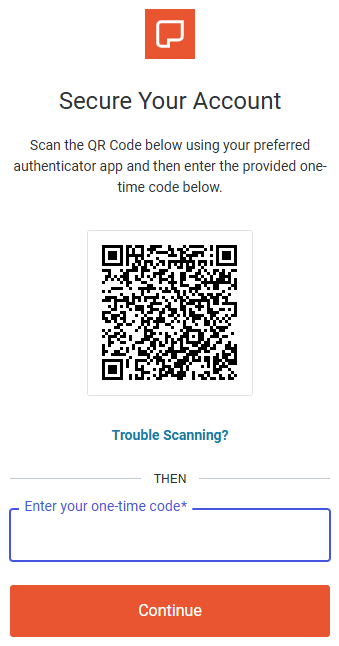
The Secure Your Account page. - Note the 6-digit authentication code for Peach Payments.
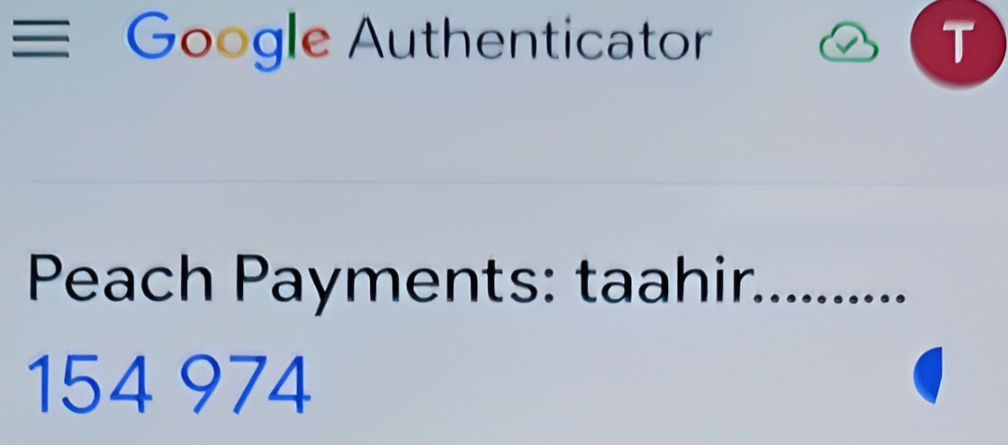
Example Google Authenticator authentication code.
- In your browser, enter the authentication code from your authenticator app and click Continue.
Log in using a magic link
To access the Dashboard:
- Visit https://dashboard.peachpayments.com.
- Enter your company email address and click Submit.
- In your email inbox, click the Login to Dashboard link that you received from Peach Payments (if you've got multiple login emails, click the latest link). If the email isn't in your inbox, check your spam folder. The magic link expires after five minutes, but you can redo this procedure to receive a new link.
- When the Dashboard prompts you for two-factor authentication:
- On your phone, open your authenticator app and note the 6-digit authentication code for Peach Payments.
Example Google Authenticator authentication code. - In your browser, in the Verify Your Identity window, enter the authentication code.
- Select Remember this device for 30 days if you don't want the Dashboard to ask for an authentication code for the next 30 days.
- Click Continue.
- On your phone, open your authenticator app and note the 6-digit authentication code for Peach Payments.
Warning
If clicking the Login to Dashboard link takes you back to the Dashboard login page, enter your company email address and click Submit again. In your email inbox, copy the login URL, paste it into your browser, and press Enter. If this doesn't work, and if you're using Mimecast for email security, ask your Mimecast administrator to add the Peach Payments domain to your allowlist. If neither of these solutions work, try to log in using your password, and if that fails, contact support for assistance.
Log in using a password
When you first gain access to the Dashboard, the email contains a link to either log in using a magic link, or to complete your account by setting a password. Use the password that you set there for all future logins, unless you reset it. If you can't find the initial email, you can set your first password using the reset your password functionality.
To access the Dashboard:
- Visit https://dashboard.peachpayments.com.
- Click Username & Password beneath the Submit button.
- Enter your company email address and password, and click Log in.
- When the Dashboard prompts you for two-factor authentication:
- On your phone, open your authenticator app and note the 6-digit authentication code for Peach Payments.
Example Google Authenticator authentication code. - In your browser, in the Verify Your Identity window, enter the authentication code.
- Select Remember this device for 30 days if you don't want the Dashboard to ask for an authentication code for the next 30 days.
- Click Continue.
- On your phone, open your authenticator app and note the 6-digit authentication code for Peach Payments.
Reset your password
If you've forgotten your password, you can reset it without contacting Peach Payments support.
The following video showcases how to reset your Peach Payments Dashboard password:
To reset your password:
- Visit https://dashboard.peachpayments.com.
- Click Username & Password beneath the Submit button.
- Click Don't remember your password?.
- Enter your company email address and click Send email.
- In your email inbox, find the
Password Change Requestemail and click the link to reset your password. - Enter and confirm your new password, then click Submit.
Warning
If you cannot log in using your password, try to log in using the magic link, and if that fails, contact support for assistance.
Manage multiple businesses
The Peach Payments Dashboard enables you to manage multiple businesses configured in a hierarchy. One organisation could have multiple linked businesses, which you can manage as follows:
- View and manage transactions across businesses
- View and manage team members across businesses
- Switch between businesses
Switch between businesses
If you have access to multiple businesses on the Peach Payments Dashboard, you can switch between businesses as follows:
- Log in to the Peach Payments Dashboard.
- In the upper left of the Dashboard, click the business name.

Business selector. - Select the business that you want to switch to. If it's not in the list, there is a View all businesses that you can click, then search for and select the business.

Select the business that you want to switch to.
The Dashboard switches to the selected business.
FAQ
I don't have access to my authenticator app and cannot retrieve an authentication code; how do I log in to the Peach Payments Dashboard
Show answer
Ask someone on your team who has owner or administrator access to reset two-factor authentication enrolment for you. After they reset it, log in and enrol in two-factor authentication again. If you are the only owner or administrator, contact support and request that they reset your two-factor authentication enrolment so that you can log in.